How to apply drawing objects |
ArthaChitra lets you to draw drawing objects and natively comes with a host of popular drawing objects like Fibonacci Retracement, Fibonacci extension, Gann Fan, Andrews Pitchfork, Regression Channel or shapes like Rectangle, Ellipse, Circle to name a few.
Besides the native drawing objects, ArthaChitra also lets users, create their own drawing objects. For more details please refer here.
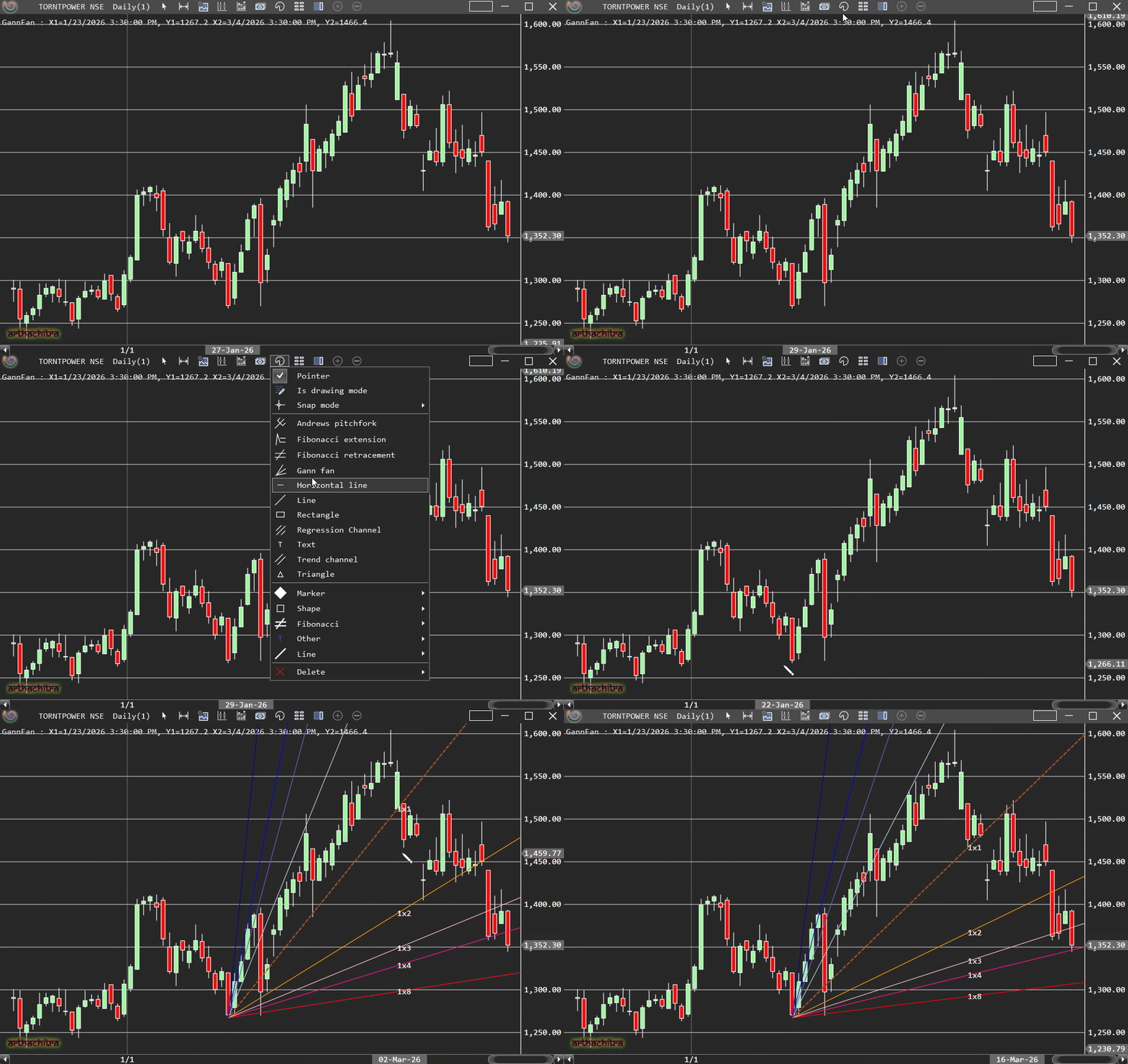
Please follow the below steps to draw an drawing object:
In the chart menu bar click on the 'Drawing palette' menu item
Select the drawing object
Draw the drawing object at desire bars (x-axis) and price (y-axis)
ArthaChitra also lets you build your own drawing object using SharpScript. To know how to build a drawing object please click here. You can draw an drawing object via an indicator or strategy also. Please refer here to know more.
 Global drawing objects
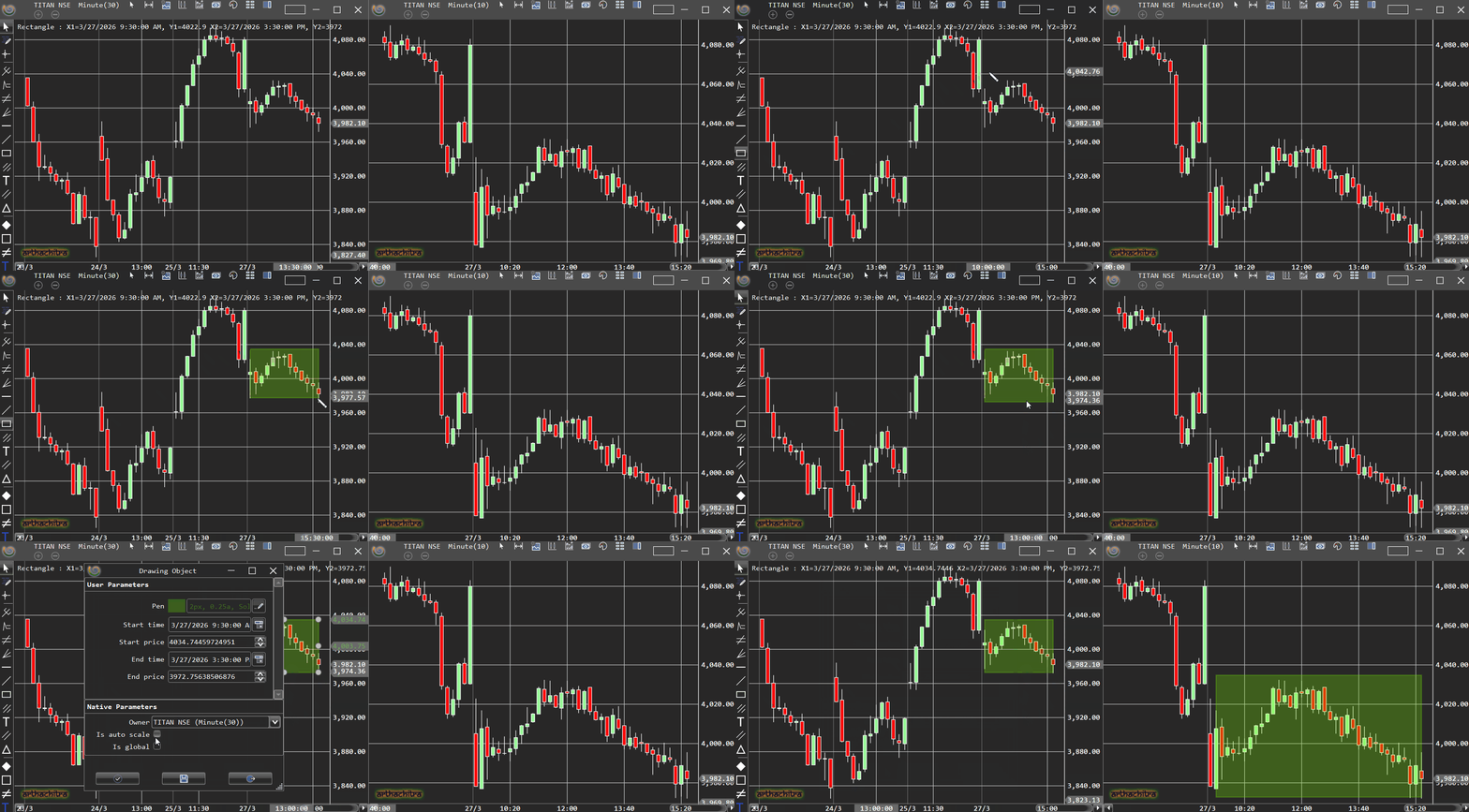
If you have a drawing object and you want the same to be displayed across all the open charts (of that specific instrument) then you can do so by setting the 'Is Global' property to true. For example if you have a 10 minute chart and a 30 minute chart opened. Now you draw a say, rectangle on the 30 minute chart and you want the same to be displayed on the 10 minute chart also. You can simply set the Is global property to true to achieve this as shown in the below screenshot.
Select the drawing object and double click on it
In the Properties dialog set the 'Is global' to true
Click OK
Note:
If you make any changes, the same will be reflected in all the charts.
If you delete any global drawing object (by pressing the Delete key), it will be removed from all charts.
If you set the 'Is Global' to false, then that drawing object will be retained on that specific chart, however it will be removed from all other charts.