How to open a chart |
ArthaChitra lets you append one or more bars on a single view. A host of bars types like Minute, Day, Tick, Renko etc comes natively with ArthaChitra. Additionally we do expose both the BarType and ChartStyle objects which lets you build your own BarType and ChartStyle.
BarType can be configured while opening a chart. For this illustration we will try opening a 5 (Five) Minute chart. Please follow the below steps to configure the same.
| 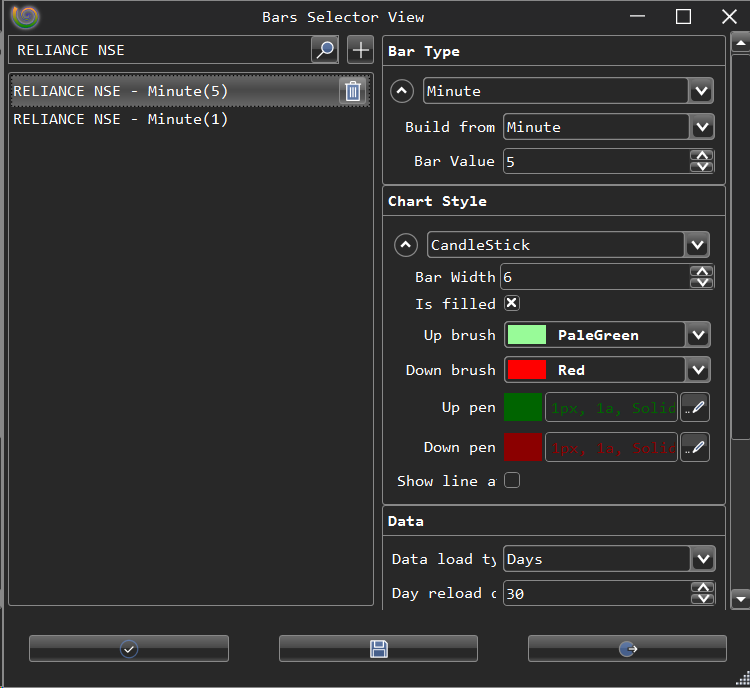 |
Note:
You can add multiple instruments to display multiple series
Please do remember ArthaChitra lets users to create their own BarTypes. The parameters/settings for each barTypes can differ from one another. In case of 3rd party codes please contact the developer/vendor of the specific sharpScript code.
 How to add a specific barType periodicity in Chart View
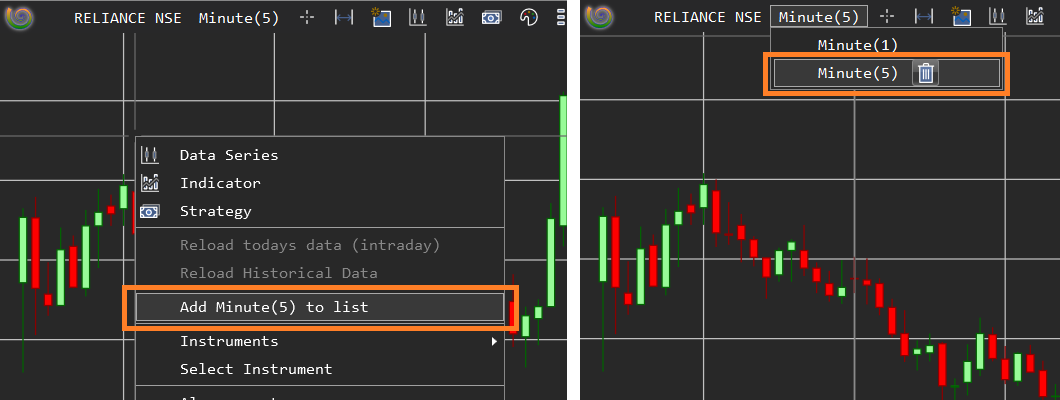
The ChartView barType drop down list lets the user to change the periodicity easily. ArthaChitra lets the user to add his/her favorite periodicity in the barType drop down list for easy accessibility.
- Right click on the chart
- Click on Add <barType periodicity> to list
Now you will be able to access the newly added periodicity from the barType drop down list.